Three Palm Software announces WorkstationOne 1.9.4
Carmel, CA, 24 July 2025
The 1.9.4 release of WorkstationOne is now available for customer installs. Short descriptions of the changes in this release are included in the release notes which are available to all customers, while highlights of selected items are included below with more detail.
UI Changes
UI improvements include:
- Tooltip display made more consistent across the navigation and image screens (see expanded: Tooltips).
- Borders for fanning hanging protocols are now shown (were not shown in previous releases).
- The tomo tools dialog has been improved by updating it to the DevExpress style (which is better for scaling) and is now also localized (see expanded: Tomo tools dialog).
- Service-configurable “toast” notifications supported (off by default). This is an improved way of showing information that is shown in the “bell” icon (see expanded: Toast notifications);
- Stepping option (user configuration) added to allow looping on priors with wheel – rather than step.
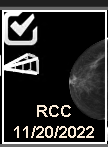
- Thumbnails – configurably allow display of an image type indicator on the thumbnails (currently tomo and projections are flagged): (see expanded Thumbnail type indicator).
- The import tool UI has been improved to use checkboxes for selection of items to import.
- Configurably the default WL options can be hidden (see expanded Window level selector).
- The status and error strings within the query dialog are now localized.
CAD/AI Display and Interaction
This release builds on the CAD/AI support that was previously expanded in the 1.9.3 release. Changes include:
- Added user configurable options for CAD font size and colors with “always override” option.
- b-rayZ support added (2D, 3D and decision support).
- HeraMI CAD-SR support added – including “regions”.
- Hologic Genius AI – added support for “related groups” – allows linking between markers in different views (see expanded: CAD marker linking).
- Screenpoint coding scheme – allow both old and new names.
- Lunit – handle latest generation SR information.
- White Rabbit – changed display to show outline graphic style rather than markers.
CAD/AI Scores on the Worklist
Worklist display of CAD scores is expanded to include:
- Kheiron – score format now split into {0} and {1} args.
- Therapixel – score extraction now supports the breast density column.
- Volpara – default score format updated.
- b-rayZ – default score format added, including “quality” metric in cad2 column (see expanded Configurable CAD scores on worklist).
- Hologic – 4 more metrics have been added to CAD score options (can be formatted for the worklist) (see expanded Configurable CAD scores on worklist).
- Generic vendor – CAD-SR parsing now includes additional arguments: 4=”e” and 5=”f” (see service manual for details).
Plugin Changes
Changes to the bundled plugins include:
- The SR document viewer now allows the user to select the foreground color.
- The reporting plugin now has an option to send to summary report targets (HL7, file trigger and TCP).
- The web document plugin (WebView2) now allows opening when there are zero studies of the primary modality (and not “ignore most recent”) – service option for this plugin.
Worklist Companion
Changes to the worklist companion tool include:
- The list of cases now shows CAD scores (see expanded: Worklist Companion CAD Scores).
- The details tab shows progress (as the number received out of the expected number) in the table footer.
- Improved handling of the case when the same patient is on multiple (connected) machines and details are opened for multiple machines.
Performance
The following changes have been implemented to improve performance:
- Optimization to low-level DICOM send code.
- Latest version of toolkits (including Intel IPP and dcmtk).
Back-end
Changes to the back-end (Windows Service for communication tasks) include:
- Mammo rules (pre-fetch) update along with scheduling tab of be-config. UI now shows ranges as absolute dates, but remain as relative (by default, but now configurable).
- StoreStow code included in release (DICOM web services).
- Database – improved check for replacement of patient name and DOB (so only current study used). This avoids the situation where an older name for a patient (such as a maiden name) could replace the newer name.
- Retry options for AdapterSend have been added on the service UI.
- Optimizations for AdapterSlave have been added on the service UI.
- CTtoBTO converter – added support for GE CTO format
- AdapterFileImporter – added support for zip file extraction during import (zip is unpacked, imported, and deleted).
- AdapterFileTrigger – added option to map “deleted” and “signed” to close of the case.
Interoperability
Interoperability changes include:
- Image graphics updated to support advanced GSPS encoding (i.e., more support for text and line styles from GSPS).
- Expanded support for text shadow color (GDI+, GDI, DD) (to support newer GSPS style mechanisms).
- Added an offset for background line drawing (to support enhanced GSPS encoding).
- Added support for YUV to RGB conversion.
- CAD score information is now available through the Enterprise Interface – ReportAiScores event. This is used by the updated display within WL Companion.
Service
Changes to service tools include:
- Support for opengl and Matrox display have been removed (no longer supported by Microsoft).
- New OEM options added (IQ-IMAGE + HCK).
- App.options has a setting added “CharacterSetFromSource” to allow any generated object’s character interpretation to be the same as the source study.
- There is a new configuration option to enable “toast” messages (App-config).
- There is a new configuration option “ThumbnailsTypeShow” to allow display of an indicator on the thumbnails (App-config).
- There is a new service option “WlShowDefaults” to hide the default window/level options (App-config).
Miscellaneous
- Other changes include:
- The internal plugin interface has been updated to allow indication of whether a save request is for markup or report.
- Saving of GSPS now includes line-style for graphic elements and text-style for text elements.
- Hera-MI custom code for image-type such as “negativated” (displayed on thumbnail etc) + included in image type sort.
- Worklist interface has an added argument for target adapters, which is used in the report plugin for the “summary report” destination.
- There is a new variable ($lossyever) for use in custom formatting.
- Annotation fields that are “datetime” and “time” are now kept native until display – allowing config-defined formatting.
- Markup correlator now does something sensible to estimate the breast size if the system is configured as “no mask” – i.e., when there is no size information available.
- When handling an external close request the system now issues a ChangeStatus directly.
- Simplified logic for up/down arrow keys so that extra view switch occurs for a VP even if the current study has tomo (i.e., on a VP basis rather than for the complete screen).
Expanded Highlights
Tooltips
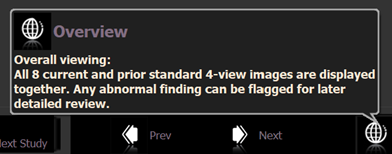
Tooltips are small floating windows that appear over various parts of the UI when the mouse “hovers” over a location. These can be hidden or shown (via the user setting “enable popup help” on the “user controls” tab of the user’s settings). In the 1.9.4 release the appearance of the tooltips has been made more consistent, and additional information is provided. For example, hovering over an “overview” step shows:
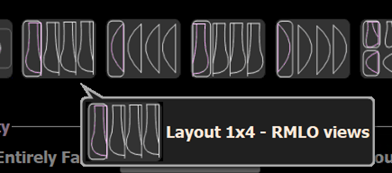
Hovering over a hanging protocol icon shows something like:
Hovering over an image thumbnail shows information like:

The popup information can be useful when learning the system, e.g., to figure out what the buttons do:
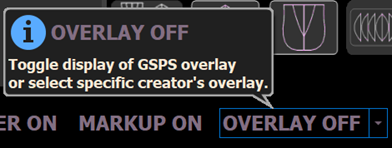
But this may be less important (and may be annoying) once the user is familiar with the system. It is thus recommended that the tooltips be disabled once they have served their purpose.
Tomo Tools Dialog
This release retains the existing functionality for interaction with tomosynthesis images, but the popup “tool dialog” (from the tools icon next to the tomo slider) has an updated look and feel:
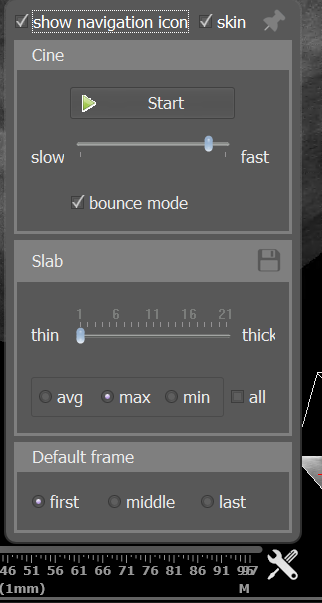
Apart from appearance, the options are the same as in 1.9.3 and are covered in more detail in the user manual.
Toast Notifications
WorkstationOne notifies the user of certain background activities as needed. This has classically occurred via the “bell” icon (by default positioned below the worklist), which is shown as solid when there is a message to read:
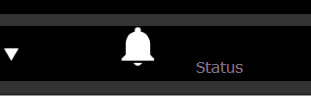
Once the user clicks the bell, a list of messages is displayed, and the bell icon reverts to an outline:

The “expand” button at the top right of that window allows the window to be shown larger to see more lines of the messages (see the user manual for more details). One disadvantage of the bell icon is that if the user does not notice that it has changed to a solid rendering, then the button may not ever be clicked, and so whatever alerts there are may not be seen by the user.
To help with this, the 1.9.4 release has an added mechanism (the bell icon continues to operate as before) – the new mechanism is to use the Windows desktop notification mechanism (called “toast notifications” because they popup from the system task bar). By default, WorkstationOne does not use the toast mechanism, but this can be enabled on the service tool. Once enabled, any message that is displayed under the bell is also displayed as a “toast” message – which shows at the lower right edge of the system task bar (these messages can be silenced using the “do not disturb” button on the notification popup)
Each toast message is displayed for a short time in the corner of the screen. Clicking the lower right (e.g., where the system clock is displayed) also shows the history of those messages – limited to the last 20 messages:
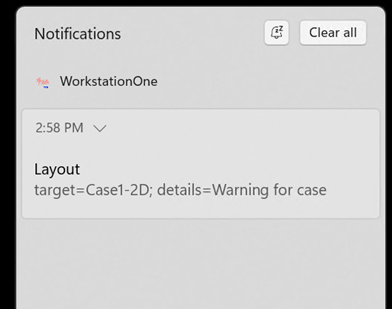
From where the messages can be cleared or simply ignored (by clicking elsewhere on the screen).
Most users will not want to use the new toast notifications as they may be seen as interruptions, but they are recommended in situations where important notices (like a failure to send something to PACS) are getting missed
Thumbnail Type Indicator
The thumbnails shown at the bottom of the image screens (by default) have tooltip information shown when the mouse is hovered over each (see above). Additionally, in the 1.9.4 release, indicator icons can be shown on each image (these are enabled/disabled on the service tool). These look like:
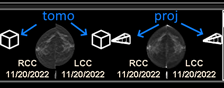
i.e., there is a small, superimposed graphic for the type of image (only these two types are differentiated currently – all other types have no indicator). The tpe indicator is located just below the “checkmark” which is shown once an image has been viewed:
Window Level Selector
By default, and the same as in previous releases, the “window level” menu of defined lookup tables looks like:
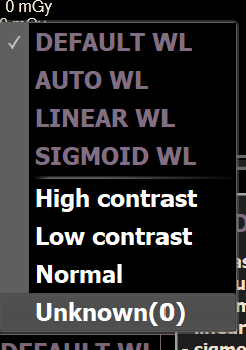
With the white options below the line being supplied by the open case, and the pink entries above the line being internal default values. Each time the button is clicked (not the menu, but the button), the next value in that sequence is used, so that the user can quickly cycle through the available lookup tables. The 1.9.4 has a configuration option which allows the built-in values to be skipped, so “auto”, “linear” and “sigmoid” above are skipped so with the setting “contrast cycle skip builtin” enabled, then for this case the sequence is “default WL”, High contrast”, “Low contrast”, “Normal”, and “Unknown(0)” in a loop.
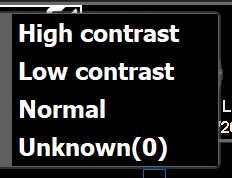
There is another service option that controls the showing of the built-in values. With this option turned off, the menu becomes (for this case):
CAD Marker Linking
Previous versions of WorkstationOne supported stepping and linking between marks in different views. With this release, the linking is expanded to include the “related group” tag with the Hologic Genius AI (2.0). For example, clicking on a marker in the tomo LMLO view that is labelled as (A), shows the CAD details dialog:
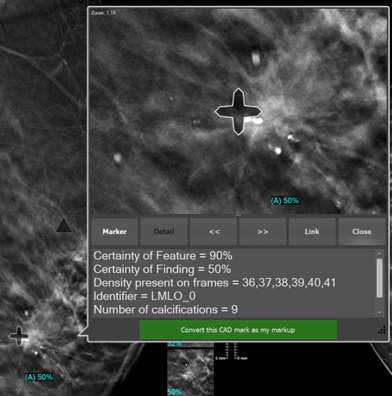
From this details view, clicking on the “Link” button, causes the corresponding related marker to be displayed in the tomo LCC view:

Clicking the button again returns to the first position in the other view. The “>>” and “<<” allow cycling through the markers as normal, ignoring any relationship that may exist.
Configurable CAD Scores on the Worklist
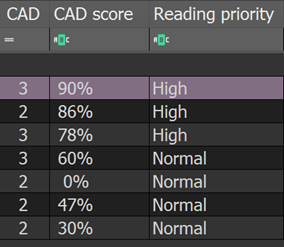
Previous releases included this capability, but again in the 1.9.4 release there are new CAD/AI vendors, and even for existing vendors, new metrics in the CAD-SR. For example, for Hologic Genius AI it is possible to have both a score and “reading priority” on the worklist.
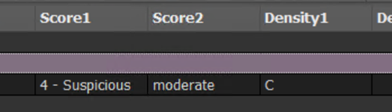
For another vendor (b-rayZ) there is a score, image quality, and breast density:
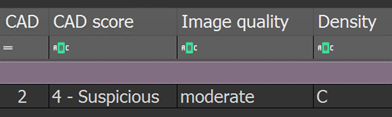
The formatting of the information in each column and the column titles are service settings, but the system includes logic for extraction of custom information for each vendor, as well as generic CAD score extraction from any vendor.
Worklist Companion CAD Scores
This release allows (configurable using “column chooser”) the user to see the CAD scores associated with the cases (which can thus include metrics like “image quality” and “reading priority”):